Cash sale
- Payment collected immediately
- No outstanding to track
- No credit check
यासाठीचे दस्तऐवजीकरण
Business Plus Plusवितरण आणि व्यापार व्यवसायांसाठी क्लाउड ईआरपीv3.0FinGrowसूक्ष्मवित्त, कर्ज आणि ठेव व्यवस्थापनv2.0SuperMandiकृषी बाजार विक्रेता, ऑर्डर आणि वितरण मंचv1.4Project Fourसंरचनायोग्य व्यावसायिक कार्यप्रवाह ॲप्लिकेशनv1.0सर्व 4 उत्पादने पहाProduct Documentation · Northwind Software
हा आशय अद्याप मराठीत उपलब्ध नाही.
Every component below is available in any .md or .mdx page with no import statement — they are registered once in astro.config.ts and auto-imported. Each section shows the component rendered, then the MDX that produced it.
The implementations live in src/components/docs/. They are deliberately small and self-contained so you can read one, understand it, and adapt it.
Five severities, one implementation. Use the severity that matches the consequence of ignoring the text — not the one that gets attention.
<Note>General information.</Note><Tip>A shortcut or best practice.</Tip><Important>Must know to get the right result.</Important><Warning>Awkward to undo.</Warning><Danger>Destructive or irreversible.</Danger>A custom title replaces the default heading, and title="" removes the heading row:
<Callout type="warning" title="Check the financial year first">Posting into a closed period needs an administrator.</Callout>
<Callout type="note" title="">A callout with no heading.</Callout><Steps> numbers its children automatically, so inserting a step never means renumbering the rest.
Navigate to the screen and click New.
Fields marked with a red asterisk are mandatory.
Click Save. A number is allocated.
<Steps> <Step title="Open the screen">Navigate to the screen and click **New**.</Step> <Step title="Complete the required fields"> Fields marked with a red asterisk are mandatory. </Step> <Step title="Save" note="takes a moment">Click **Save**.</Step></Steps>A standalone step with an explicit number works too:
Click Save to create the Sales Order.
<Step number="3" title="Save the Sales Order">Click **Save** to create the Sales Order.</Step>Before you begin
अपेक्षित परिणाम
The customer is saved with a code such as CUS/00318 and appears in sales lookups.
<Procedure title="Create a customer" role="Data Administrator" time="4 min"> <Prerequisites items={['You have the Create permission']} /> <Steps> <Step title="Open the Customer screen">Go to **Masters → Parties → Customer**.</Step> </Steps> <ExpectedResult>The customer is saved with a code such as `CUS/00318`.</ExpectedResult></Procedure><NavPath path="Sales > Transactions > Sales Order" /><NavPath path={['Masters', 'Parties', 'Customer']} label="Go to" />Ticks persist in the reader’s browser, scoped to the page and the id.
Trainee checklist
<Checklist id="component-demo" title="Trainee checklist" items={['Created a customer', 'Raised a sales order']}/>Every generated screenshot ships as a light/dark pair, swapped by CSS with no flash. Click one to enlarge it.


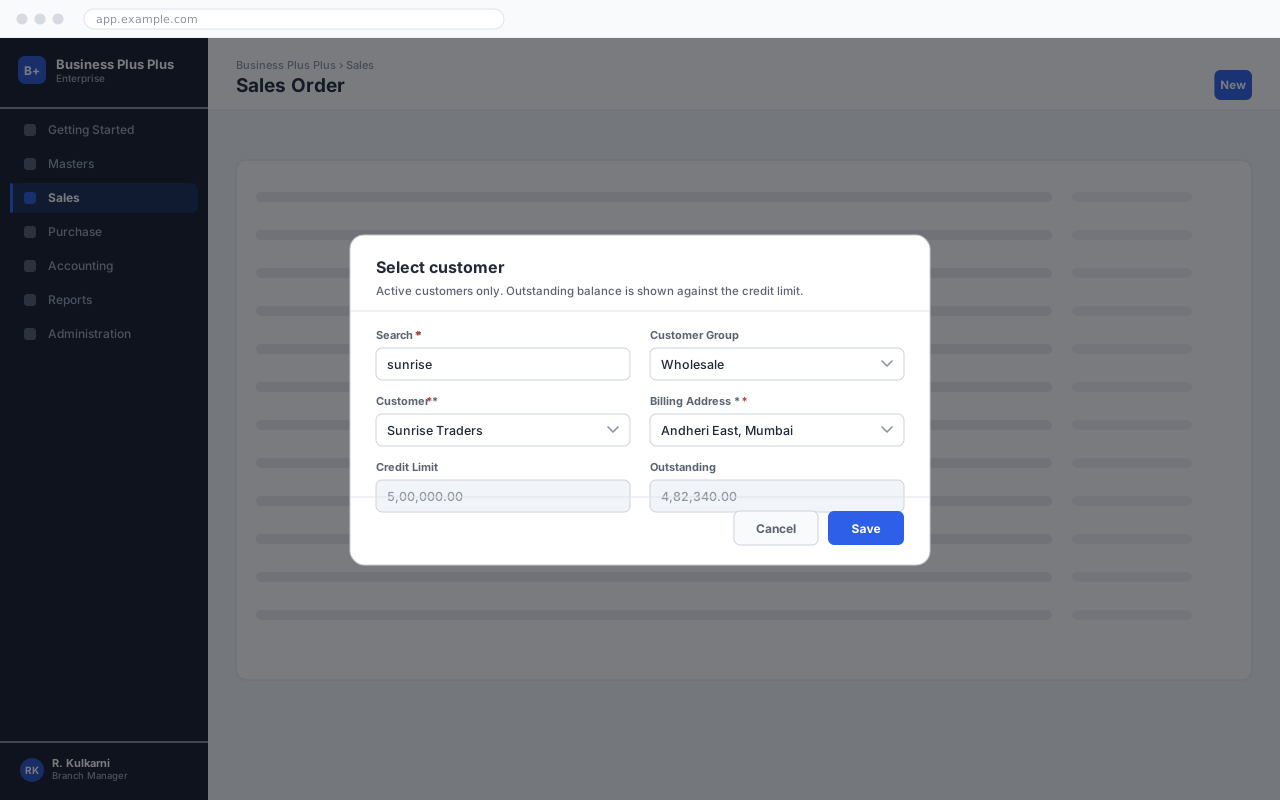
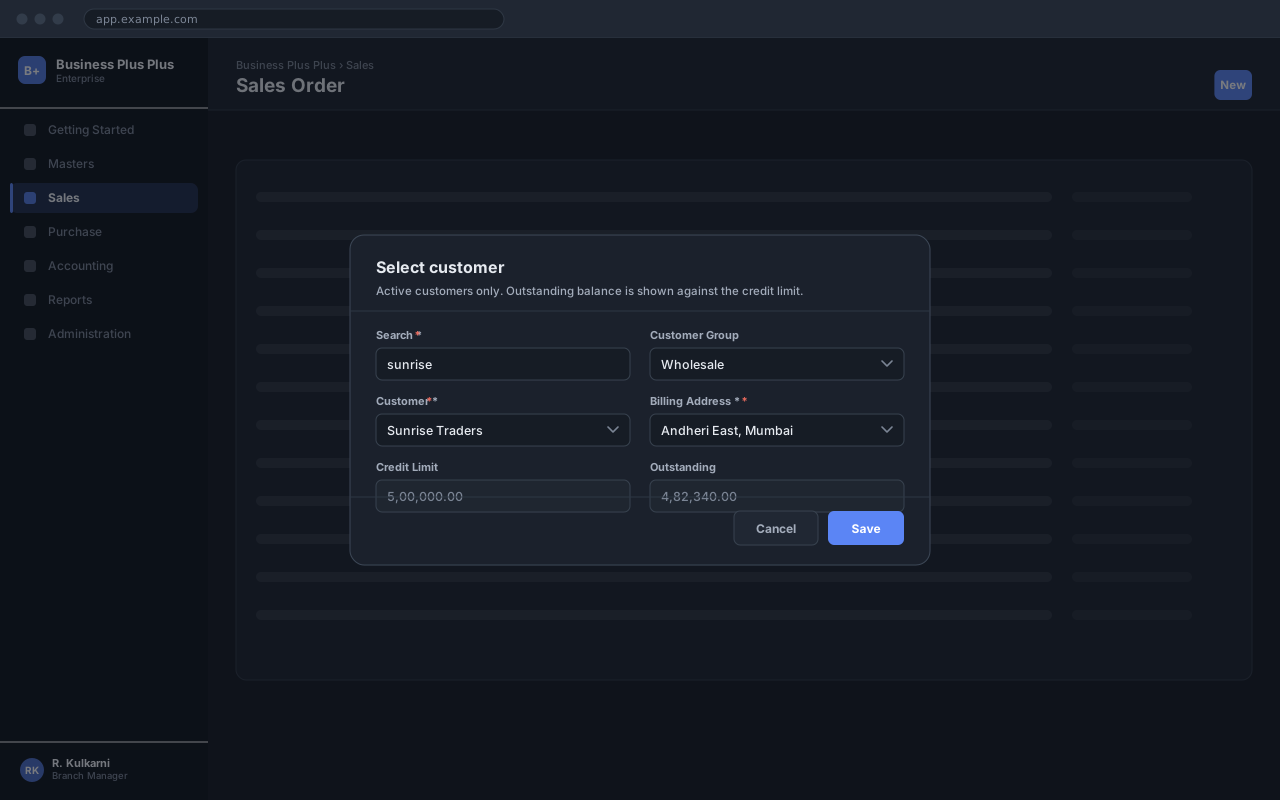
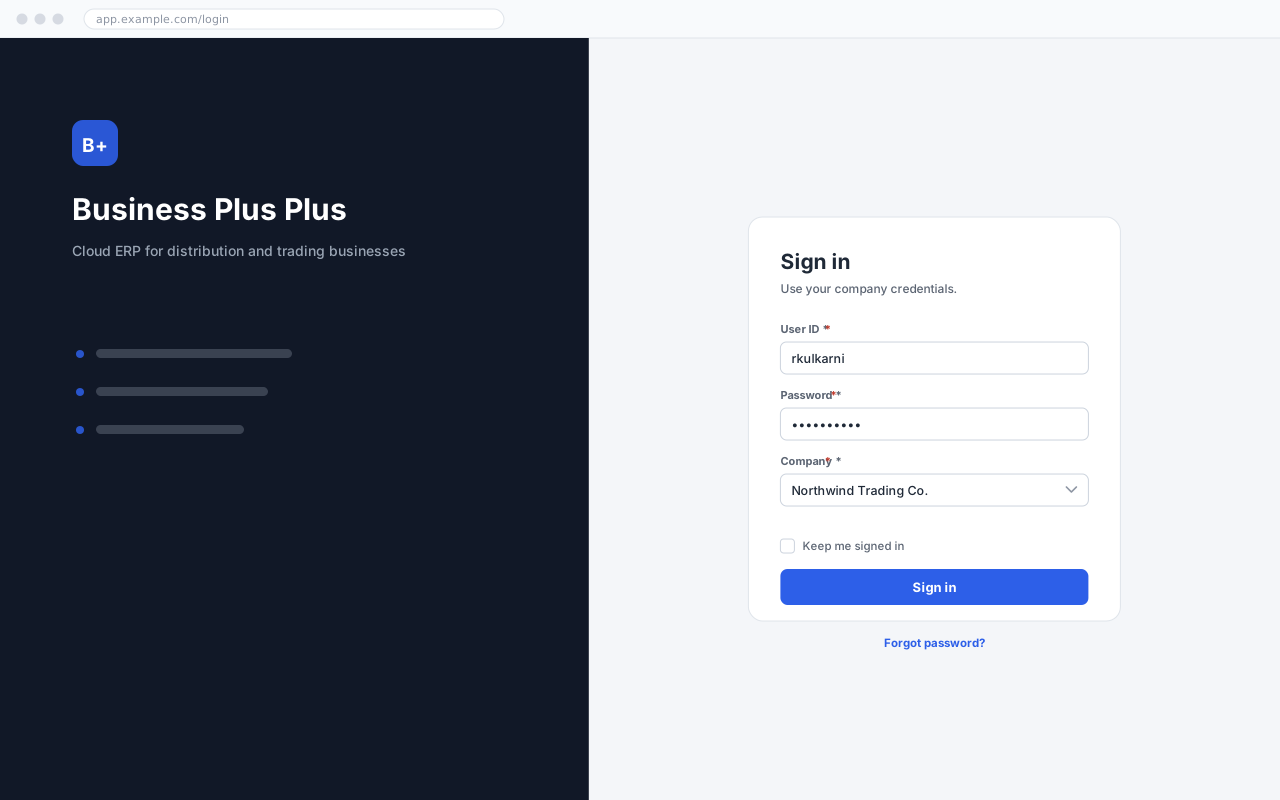

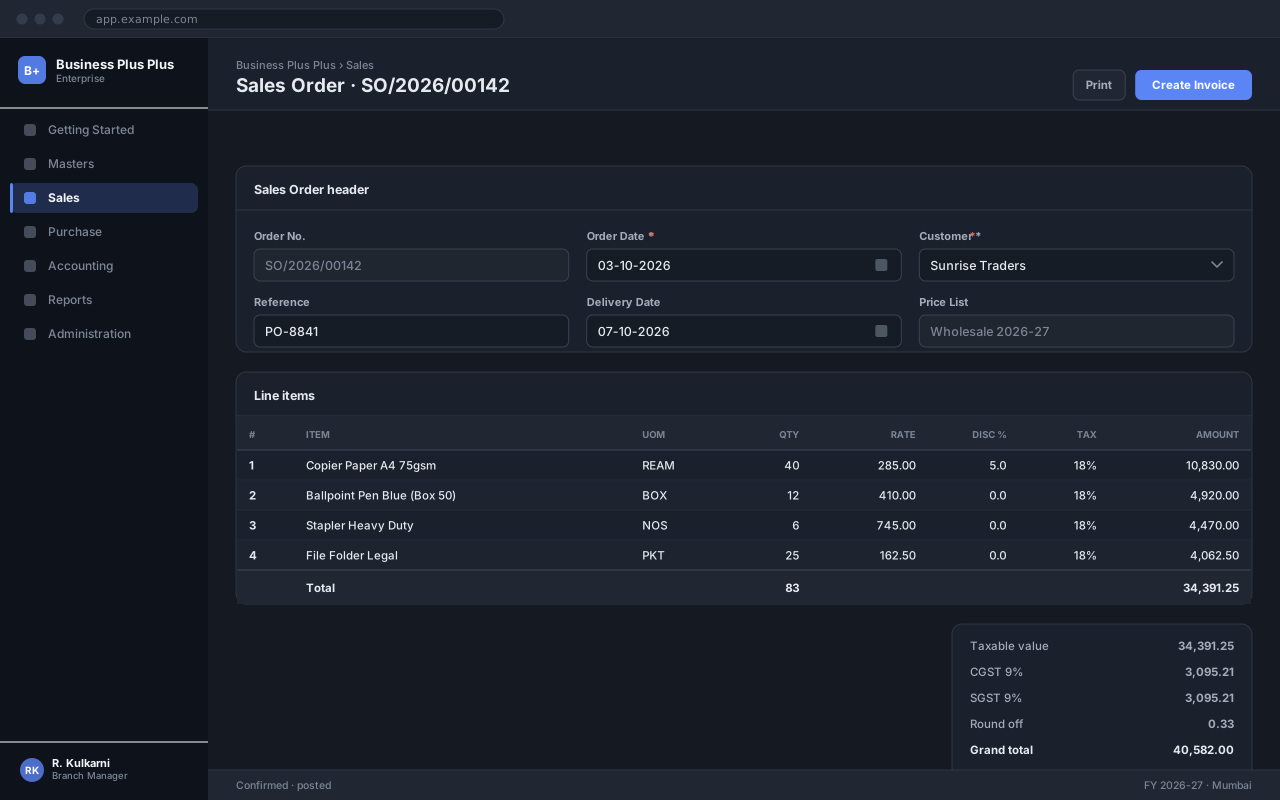
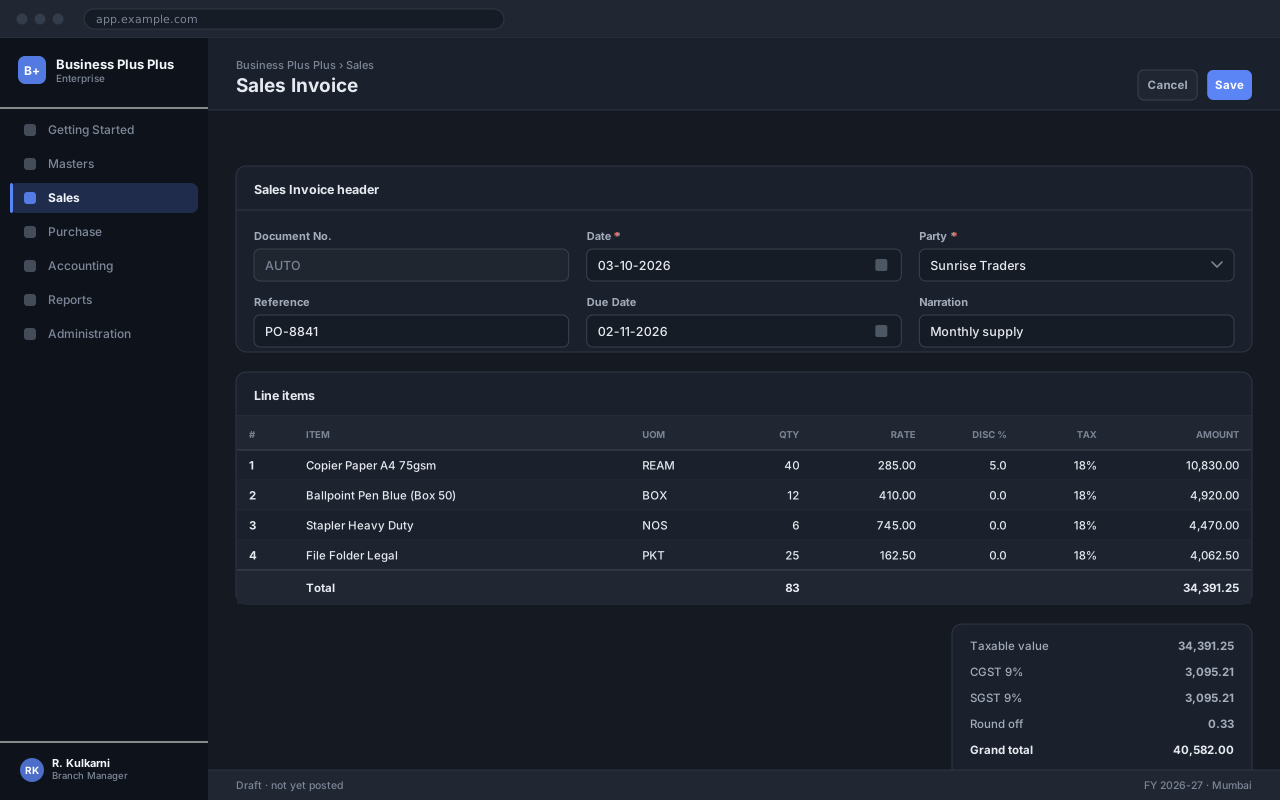
<Screenshot  src="/images/bpp/sales/sales-order.svg"  caption="The Sales Order screen."  alt="Sales Order entry screen showing header fields and a line item grid."/>
<Screenshot src="/images/bpp/sales/sales-order-customer.svg" size="md" alt="Customer lookup." /><Screenshot src="/images/bpp/real-capture.png" dual={false} alt="A real screenshot with no dark twin." />The order-to-cash cycle
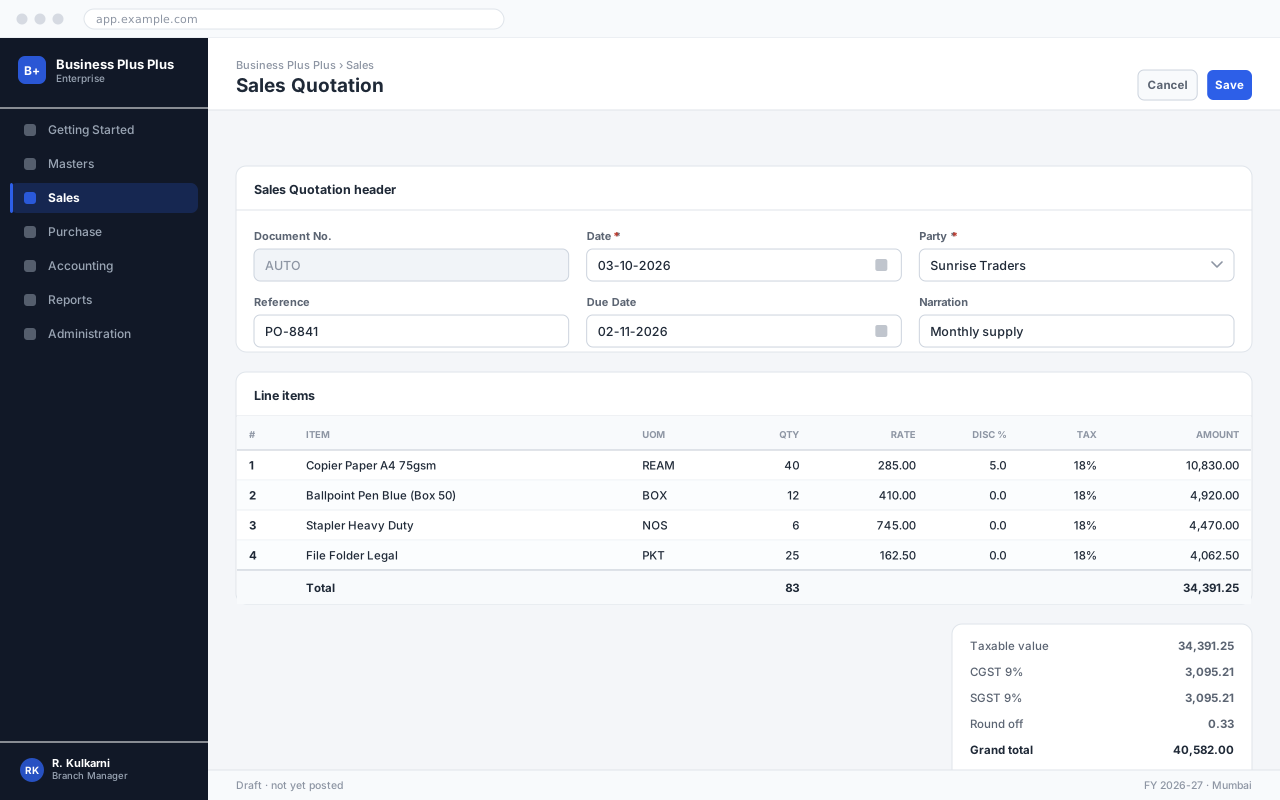
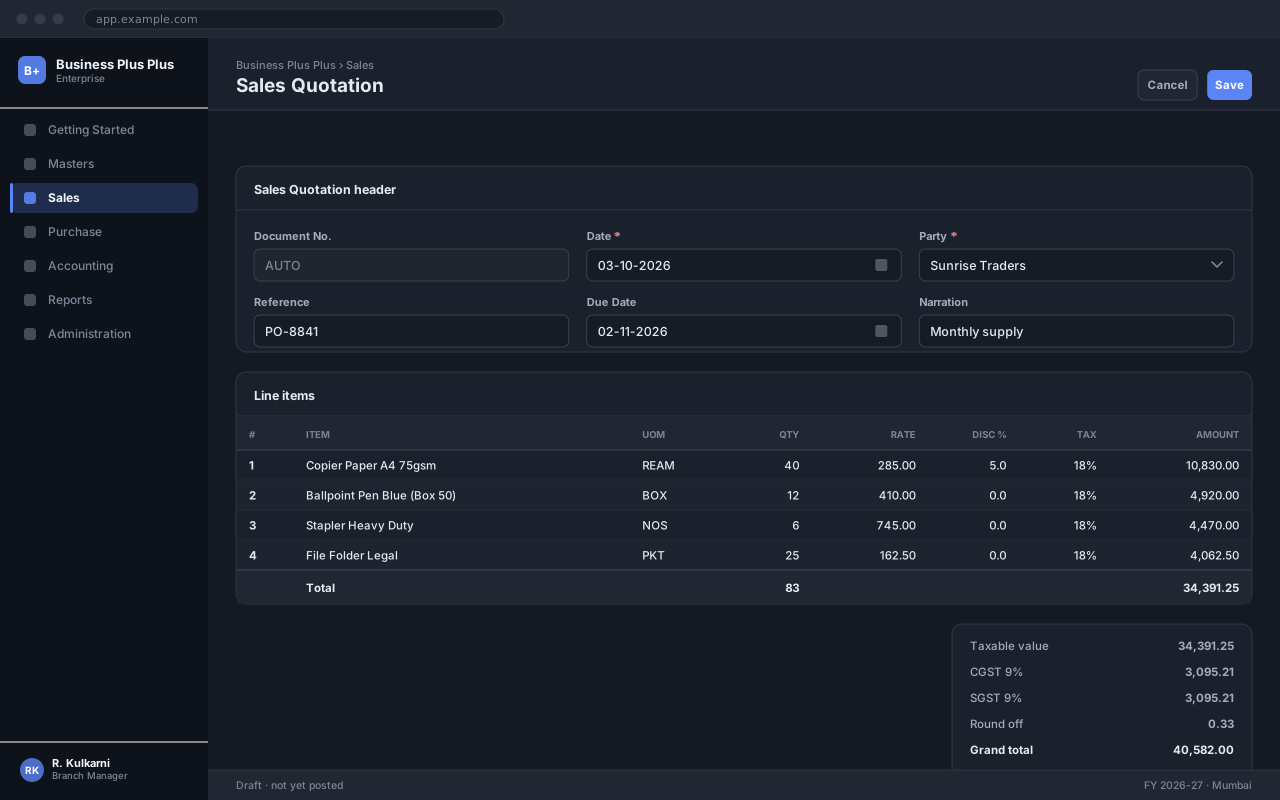
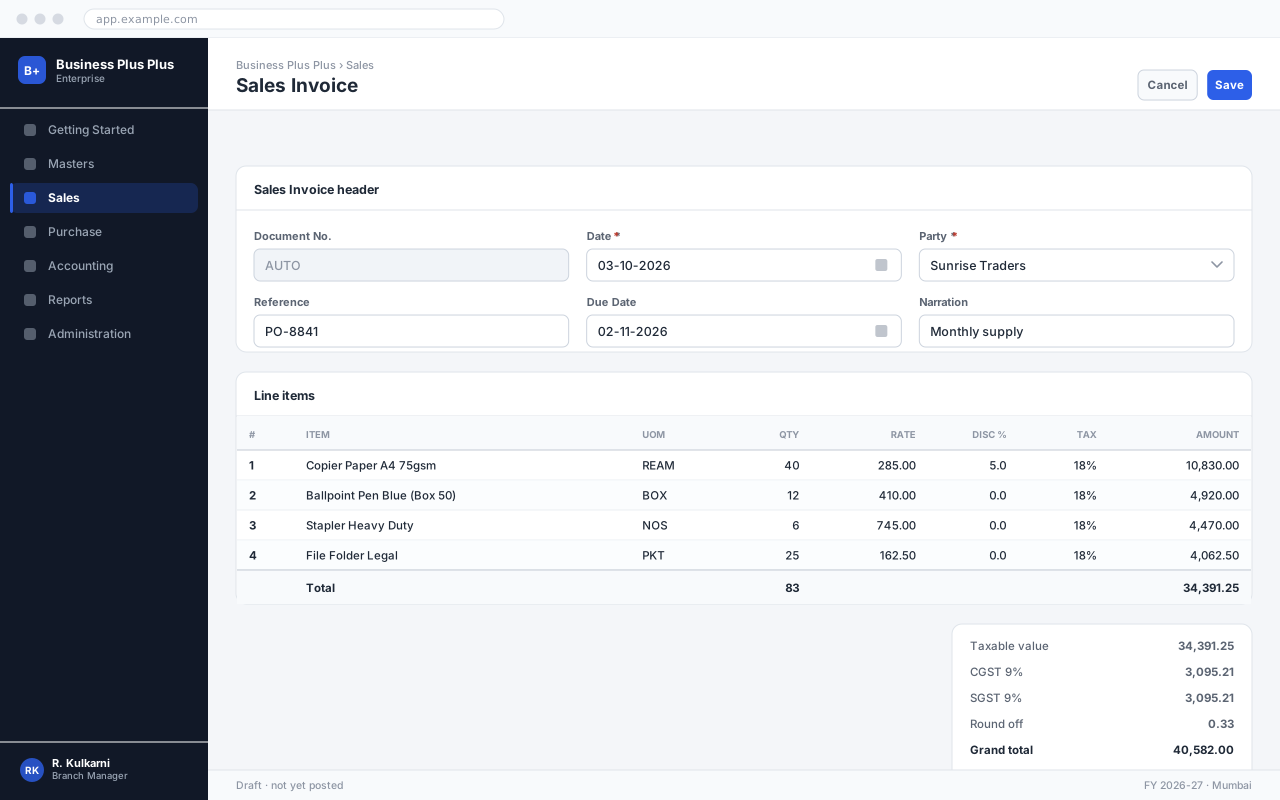
<ScreenshotGallery title="The order-to-cash cycle" columns={3} items={[ { src: '/images/bpp/sales/quotation.svg', caption: 'Quotation', alt: 'Quotation screen.' }, { src: '/images/bpp/sales/sales-order.svg', caption: 'Sales Order', alt: 'Order screen.' }, ]}/>The embed is only loaded when the reader clicks, so a page with three videos is not three times slower.
Creating a sales order end to end
Walks through the full procedure, including the credit limit override.
<TrainingVideo  title="Creating a sales order end to end"  provider="youtube"  id="dQw4w9WgXcQ"  duration="6:42"  poster="/images/bpp/sales/sales-order.svg"/>
<TrainingVideo title="Posting a receipt" src="/video/receipt.mp4" />Select the customer for this transaction.
The date the customer placed the order.
Allocated from the numbering series on save.
<Field name="Customer" type="Dropdown" required description="Select the customer for this transaction."/>The workhorse. Below 40rem it becomes a stacked card layout rather than scrolling sideways.
| Field | Type | Required | Default | Description | Notes |
|---|---|---|---|---|---|
| Order No. | Auto | Read-only | — | Allocated from the series on save. | Gap-free |
| Order Date | Date | Yes | Today | Date the order was received. | |
| Customer | Dropdown | Yes | — | Active customers only. | |
| Reference | Text | No | — | The customer's own PO number. |
Sales Order header fields
<FieldTable caption="Sales Order header fields" fields={[ { name: 'Order No.', type: 'Auto', readonly: true, description: 'Allocated on save.', notes: 'Gap-free' }, { name: 'Customer', type: 'Dropdown', required: true, description: 'Active customers only.' }, ]}/>| Step | Action | Who | Result |
|---|---|---|---|
| 1 | Create the sales order | Sales Executive | Status becomes Confirmed |
| 2 | Pick and dispatch | Store Keeper | Delivery note generated |
| 3 | Raise the invoice | Accounts Clerk | Receivable posted |
Order to cash
<ProcessTable rows={[ { action: 'Create the sales order', result: 'Status becomes Confirmed', role: 'Sales Executive' }, { action: 'Raise the invoice', result: 'Receivable posted', role: 'Accounts Clerk' }, ]}/>Row form, when the options differ along the same dimensions:
| Aspect | Sales Quotation | Sales Order |
|---|---|---|
| Commitment | None — a proposal | Confirmed by the customer |
| Reserves stock | No | Yes |
| Can be revised | Freely | Only before dispatch |
Column form, for loose pros and cons:
Cash sale
Credit sale
<Comparison  options={['Sales Quotation', 'Sales Order']}  rows={[{ label: 'Reserves stock', values: ['No', 'Yes'] }]}/>
<Comparison options={['Cash sale', 'Credit sale']}> <Fragment slot="option-1">- Payment collected immediately</Fragment> <Fragment slot="option-2">- Credit limit is checked</Fragment></Comparison>Press Ctrl+S to save, or Ctrl+Shift+Nfor a new order. Sequences render differently from chords: AltthenF.
Press <KeyboardShortcut keys="Ctrl + S" /> to save.<KeyboardShortcut keys="Alt then F" />
<Badge text="Confirmed" variant="success" /><Badge text="Beta" variant="tip" solid />Give related groups the same sync key and the reader’s choice is remembered across the page and across pages.
Press Ctrl+P to print.
Press Cmd+P to print.
Use Share → Print from the document menu.
<Tabs sync="platform"> <TabItem label="Windows">Press <KeyboardShortcut keys="Ctrl + P" /></TabItem> <TabItem label="macOS">Press <KeyboardShortcut keys="Cmd + P" /></TabItem></Tabs>Order states
It is released immediately and becomes available to other orders.
Only the delivery date, narration and reference. For anything else, cancel and re-raise.
Open the order and click Short Close. The undelivered balance is released and the order becomes Closed.
<Accordion title="Order states" single> <AccordionItem title="What happens to reserved stock?" meta="Stock"> It is released immediately. </AccordionItem></Accordion>Quick form, for plain-text answers:
Quick FAQ
No. Cancel it instead — deleting would break the audit trail.
The list shows active customers only.
Rich form, when an answer needs Markdown or a link:
Rich FAQ
Rates come from the price list, and overriding them needs the Override Pricing permission. See Price List.
Raise a delivery note with the quantity being dispatched. The order stays open for the balance.
<FAQ items={[{ question: 'Can I delete a sales order?', answer: 'No. Cancel it instead.' }]} />
<FAQ> <FAQItem question="Why can I not change the rate?"> See [Price List](/bpp/masters/price-list/). </FAQItem></FAQ>Links to another product are labelled automatically, so a cross-product reference is never mistaken for a page in the current manual.
<RelatedDocumentation items={[  { title: 'Customer Master', href: '/bpp/masters/customer/', description: 'Create the customer first.' },]} />
<RelatedDocumentation title="Customer Master" href="/bpp/masters/customer/" />Record a confirmed customer order from start to finish.
Create the receivable and post to the ledger.
Allocate a receipt against outstanding invoices.
<CardGrid cols={3}> <TrainingCard title="Creating a Sales Order" href="/bpp/sales/sales-order/" icon="cart" level="Beginner" time="12 min" description="Record a confirmed customer order." /></CardGrid>On a section overview page, <SectionIndex /> lists that section’s pages straight from the navigation config — so an overview can never fall out of step with the sidebar.
Example: the BPP Accounting section
<SectionIndex /><SectionIndex section="bpp/getting-started" title="Start here" cols={3} numbered />वितरण आणि व्यापार व्यवसायांसाठी क्लाउड ईआरपी
Business Plus Plus हे वितरण आणि व्यापार व्यवसायांसाठीचे क्लाउड ईआरपी आहे, ज्यात मूलभूत नोंदी, विक्री, खरेदी आणि लेखांकन यांचा समावेश होतो. ही पुस्तिका दैनंदिन कामकाज, प्रशासन आणि अंतिम वापरकर्त्यांचे प्रशिक्षण यांविषयी मार्गदर्शन करते.
सूक्ष्मवित्त, कर्ज आणि ठेव व्यवस्थापन
FinGrow सहकारी संस्था आणि सूक्ष्मवित्त संस्थांसाठी सदस्य, कर्जे, ठेवी आणि क्षेत्रीय वसुली हाताळते. ही पुस्तिका शाखा कर्मचारी आणि क्षेत्रीय प्रतिनिधींच्या दैनंदिन कामकाजाविषयी मार्गदर्शन करते.
कृषी बाजार विक्रेता, ऑर्डर आणि वितरण मंच
SuperMandi कृषी बाजारातील विक्रेते, मालाची सूची, खरेदीदारांच्या ऑर्डर आणि शेवटच्या टप्प्यातील वितरण एकत्र जोडते. ही पुस्तिका गेटपासून ग्राहकाच्या दारापर्यंतच्या कामकाजाविषयी मार्गदर्शन करते.
संरचनायोग्य व्यावसायिक कार्यप्रवाह ॲप्लिकेशन
Project Four हे संरचनायोग्य कार्यप्रवाह ॲप्लिकेशन आहे, ज्यात व्यवहार नोंदणी, मंजुरीचे टप्पे आणि अहवाल यांचा समावेश होतो. ही पुस्तिका संरचना, दैनंदिन वापर आणि प्रशासन यांविषयी मार्गदर्शन करते.
<ProjectGrid /><EmptyState icon="cart" title="No sales orders yet" description="Orders appear here once you create the first one." action="Create a sales order" href="/bpp/sales/sales-order/"/>For small pieces of real UI, where live markup beats a screenshot: it stays crisp at any zoom, works in both themes and prints properly.
<UiExample label="Validation state" layout="stack" caption="A field in error."> <Badge text="Credit limit exceeded" variant="danger" /></UiExample>Plain Markdown tables are styled to match the components and wrapped in a scroll container, so a wide table stays usable on a phone.
| Field | Type | Required | Description |
|---|---|---|---|
Customer |
Dropdown | Yes | The customer placing the order |
Order Date |
Date | Yes | Drives price list selection |
Reference |
Text | No | The customer’s own PO number |
Delivery Date |
Date | No | Drives the dispatch worklist |
Code blocks get syntax highlighting, a copy button, optional titles and line highlighting.
// The most specific price list wins: customer, then group, then company.function resolveRate({ customer, product, onDate }) {  const lists = priceLists    .filter((list) => list.status === 'Active')    .filter((list) => covers(list, onDate))    .filter((list) => appliesTo(list, customer));
const bySpecificity = lists.sort((a, b) => scope(b) - scope(a)); return bySpecificity[0]?.rates[product.code] ?? 0; // zero means "no price found"}{ "orderNo": "SO/2026/00142", "orderDate": "2026-10-03", "customer": { "code": "CUS/00318", "name": "Sunrise Traders" }, "status": "Confirmed", "lines": [ { "product": "PRD/00412", "qty": 40, "uom": "REAM", "rate": 285.0, "discountPct": 5 } ], "grandTotal": 40582.0}SELECT so.order_no, c.name AS customer, so.order_date, so.delivery_date, so.grand_totalFROM sales_order soJOIN customer c ON c.id = so.customer_idWHERE so.status = 'CONFIRMED' AND so.delivery_date < CURRENT_DATEORDER BY so.delivery_date;npm installnpm run build # also builds the Pagefind search indexnpm run preview # search only works against a built site