Creating a Sales Order
A Sales Order records an order received from a customer. It is the document that commits you to supplying agreed goods, at agreed prices, by an agreed date — and it is the starting point for delivery, invoicing and collection.
This page is the reference walkthrough for the manual. It is longer than most, because it covers the whole task end to end and shows every pattern the other pages use.
Overview
Section titled “Overview”A Sales Order sits between the quotation (an offer, binding on nobody) and the delivery note (goods actually leaving). Raising one does three things:
- it records what the customer has committed to buy, at what price;
- it reserves stock, so the same goods are not promised twice;
- it creates the pending quantity that delivery and invoicing work against.
A Sales Order has no accounting effect. Nothing reaches the ledger until a Sales Invoice is confirmed. That is why an order can be cancelled cleanly, and why the order book never agrees with the sales figure in your accounts.
| Step | Action | Who | Result |
|---|---|---|---|
| 1 | Sales Quotation | Sales Executive | Prices offered. No commitment either way. |
| 2 | Sales Order | Sales Executive | Customer commits. Stock reserved. |
| 3 | Delivery Note | Store Keeper | Goods dispatched. Stock reduced. |
| 4 | Sales Invoice | Accounts Clerk | Receivable created. Ledger posted. |
| 5 | Receipt | Accounts Clerk | Payment collected and allocated. |
Where the Sales Order sits in the order-to-cash cycle
Order statuses
Section titled “Order statuses”Quotation or order — which should you raise?
| Aspect | Sales Quotation | Sales Order |
|---|---|---|
| Customer has committed | No — it is an offer | Yes |
| Reserves stock | No | Yes |
| Accounting effect | None | None |
| Can be revised freely | Yes, any time | Only while in Draft |
| Expires | On its validity date | No — stays open until delivered or cancelled |
| Appears in the order book | No | Yes |
Prerequisites
Section titled “Prerequisites”Before you begin
- The customer exists in the Customer Master and is Active
- The products you are ordering exist with a unit of measure
- A price list covers those products for this customer on the order date
- Your role has the Create permission for Sales Order
- The financial period of the order date is open
Opening the Sales Order screen
Section titled “Opening the Sales Order screen”- Sales
- Transactions
- Sales Order
The list opens showing orders for the current month, newest first. Use it to check whether the order has already been entered — duplicate orders are the most common data-entry error on this screen.
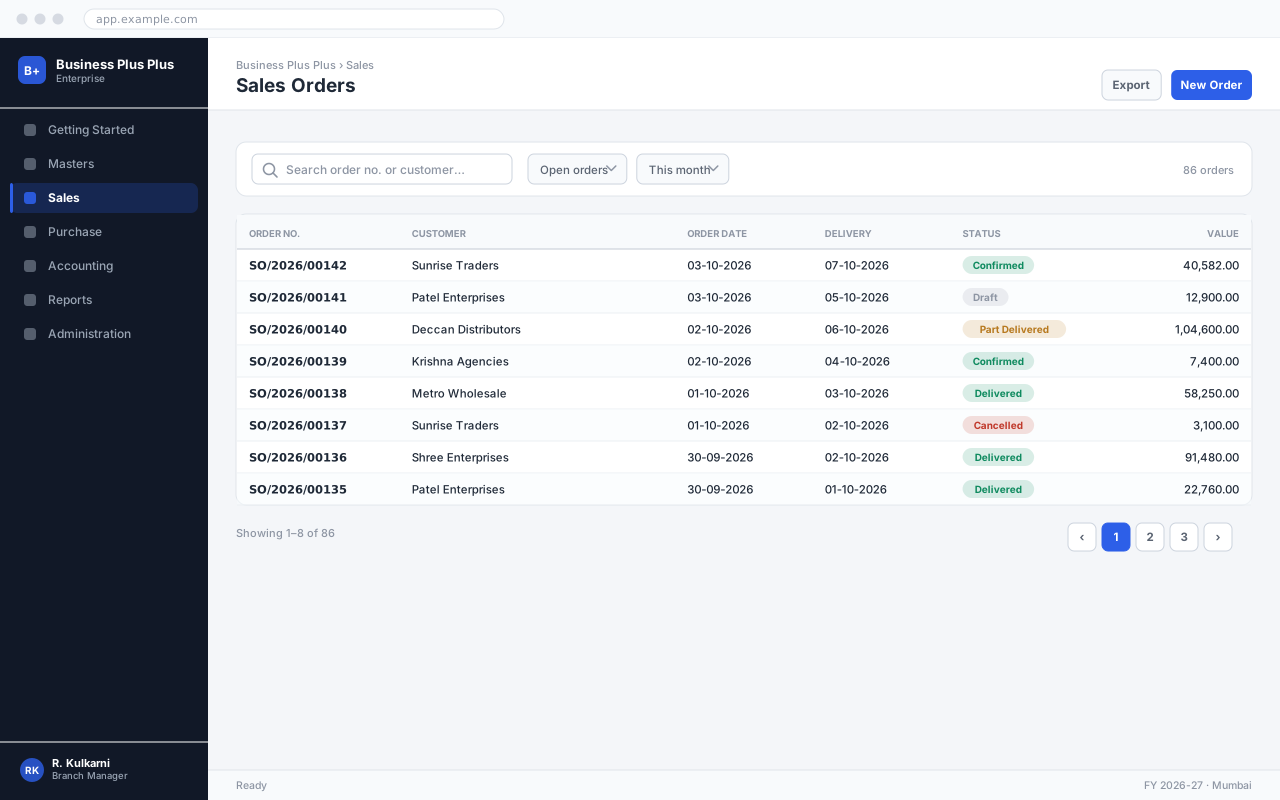
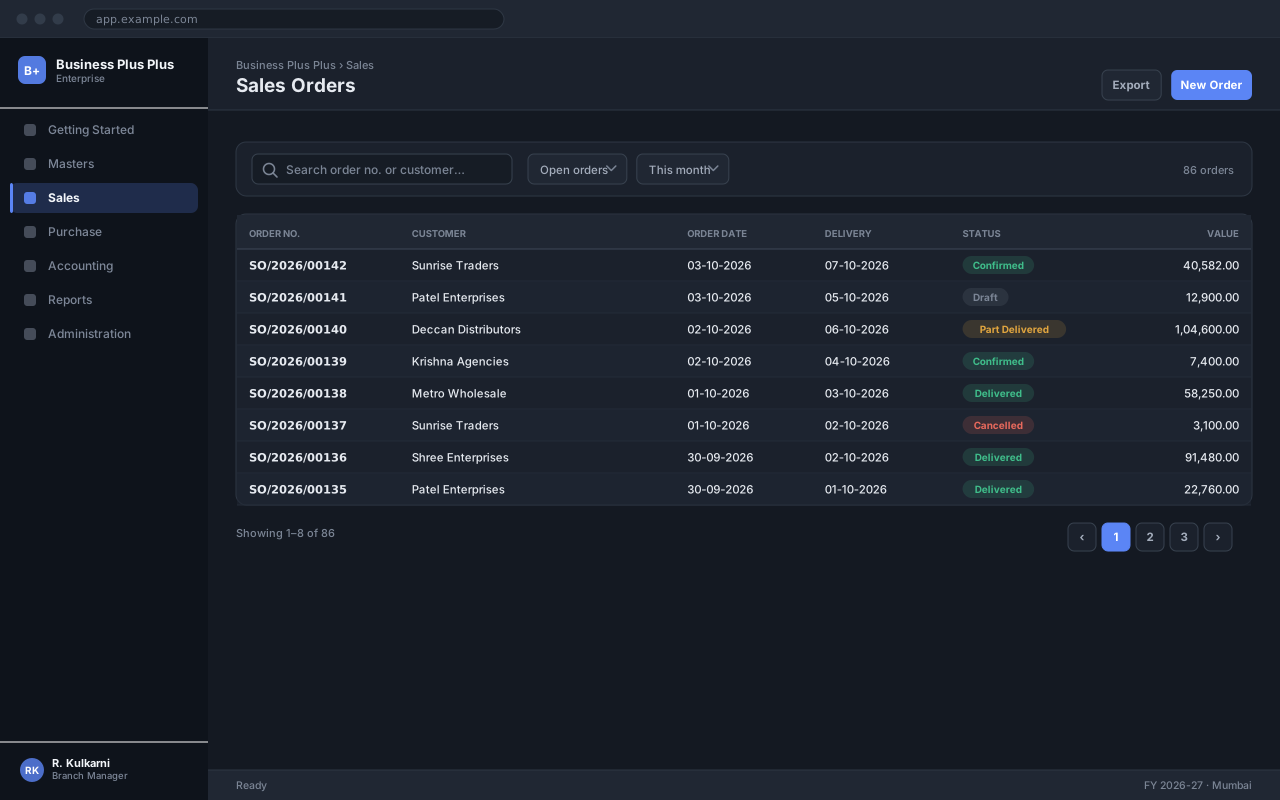
Click New Order to open a blank order.


Procedure
Section titled “Procedure”Create a sales order
Set the order date
The date defaults to today. Change it only if the order was genuinely received on a different day — the date determines which price list applies and which period reports count it in.
The date the customer placed the order.
- Default
- Today
- Example
- 03-10-2026
- Validation
- Must fall inside an open financial period. Cannot be more than 30 days in the future without the Forward Dating permission.
Select the customer
Start typing the customer name or code. The lookup shows active customers only, with each one’s credit limit and current outstanding balance so you can see the credit position before you commit.
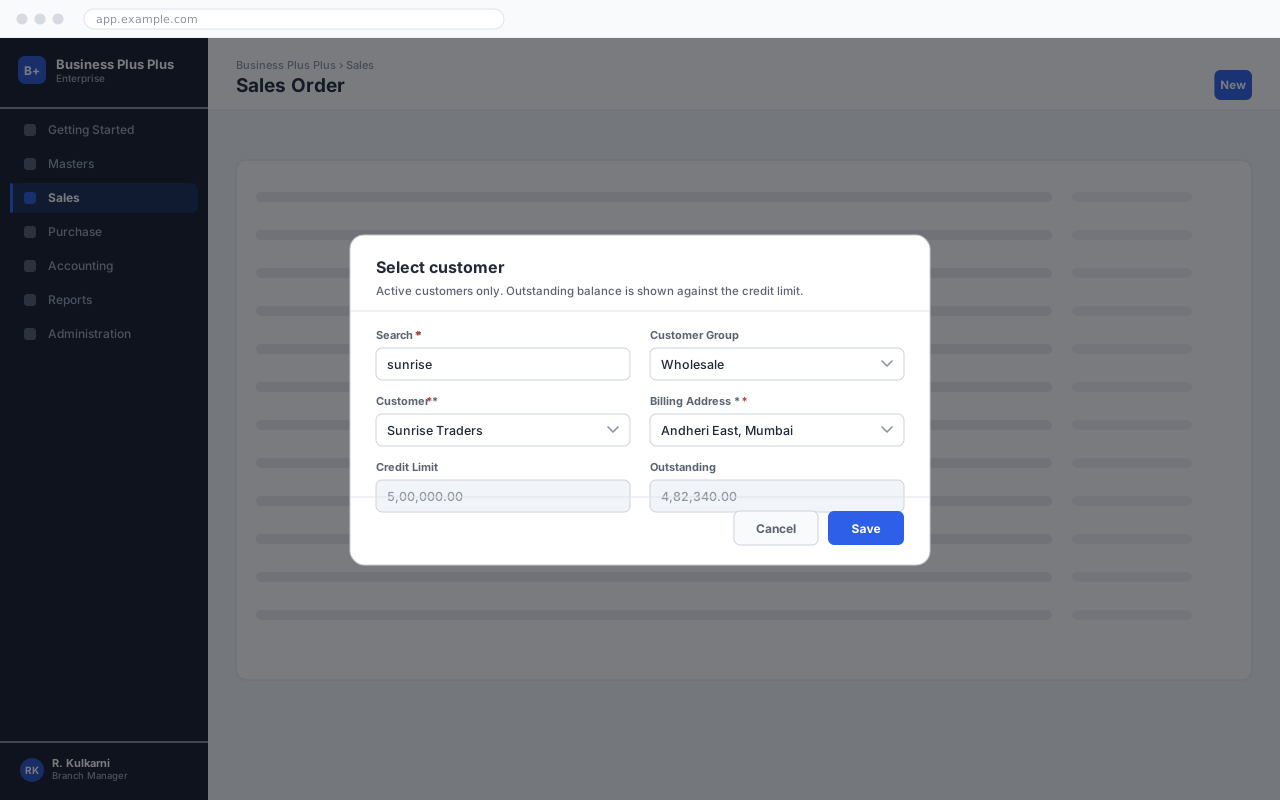
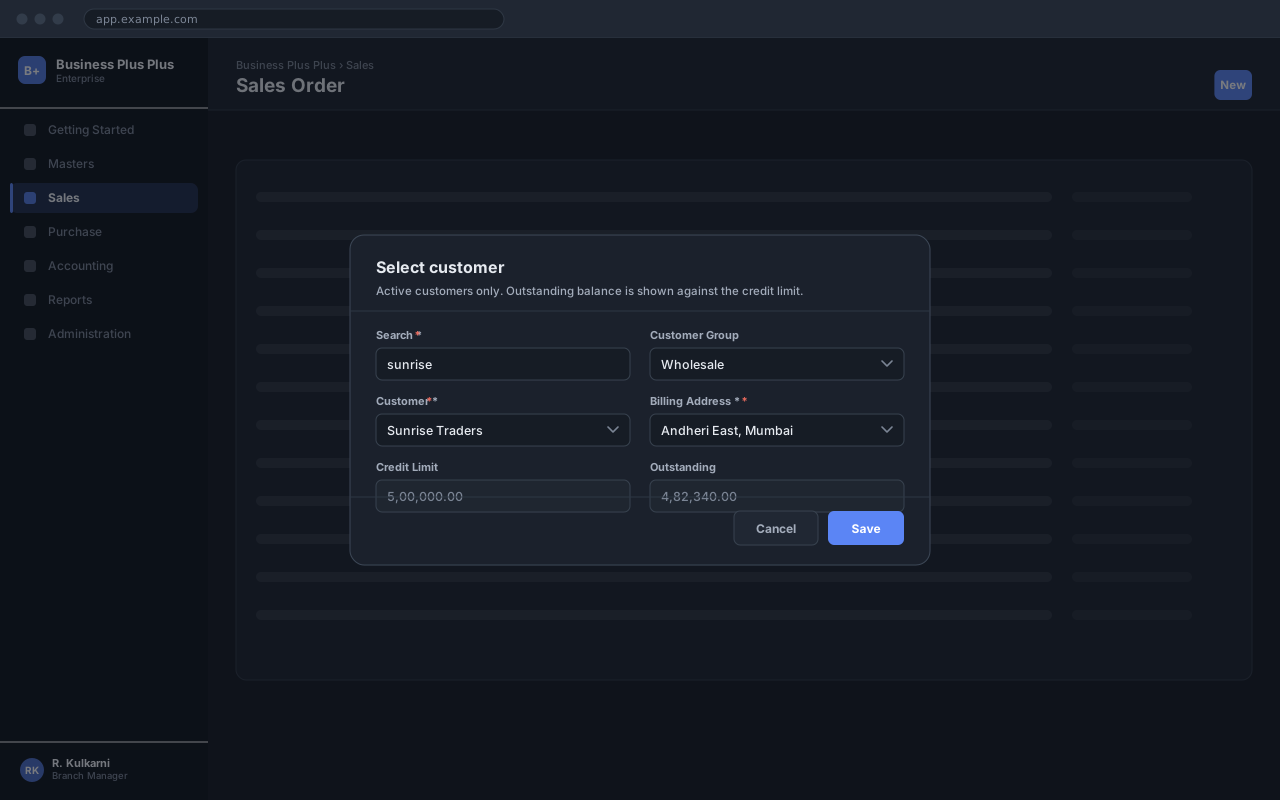
Select the customer for this transaction.
- Validation
- Active customers only. A blocked customer can be selected but the order will not save.
Selecting the customer fills in the billing address, price list, payment terms and tax treatment from the Customer Master. Each of those can be overridden on this order if your role permits it.
Confirm the delivery address and date
The billing address is used for tax; the shipping address is where the goods go. If the customer has several shipping addresses, pick the right one now — changing it after the delivery note has been raised means cancelling the delivery.
| Field | Type | Required | Default | Description | Notes |
|---|---|---|---|---|---|
| Order No. | Auto | Read-only | — | Allocated from the Sales Order series when the order is saved. | Gap-free. Cancel rather than delete. |
| Order Date | Date | Yes | Today | Date the order was received. Drives price list selection. | |
| Customer | Dropdown | Yes | — | The customer placing the order. Active customers only. | |
| Billing Address | Dropdown | Yes | — | Registered address. Sets the place of supply and the tax split. | Defaults from the Customer Master. |
| Shipping Address | Dropdown | Yes | — | Where the goods are to be delivered. | Defaults to the customer’s default shipping address. |
| Reference | Text | No | — | The customer’s own purchase order number. | Printed on the invoice. Enter it — customers reconcile on it. |
| Delivery Date | Date | No | — | Date the customer expects the goods. | Drives the dispatch worklist. |
| Price List | Dropdown | Read-only | — | Resolved from the customer and the order date. | Editable only with the Override Pricing permission. |
| Salesperson | Dropdown | No | You | Credited with the order for commission and reporting. | |
| Narration | Text area | No | — | Notes carried through to the delivery note and invoice. |
Sales Order header fields
Add the products
Add one row per product. Enter the product, then the quantity; the rate, discount and tax come from the price list and the product master. Press Tab at the end of a row to start the next one.
| Field | Type | Required | Default | Description | Notes |
|---|---|---|---|---|---|
| Product | Lookup | Yes | — | The product being ordered. Active products only. | Search on code or description. |
| Description | Text | No | — | Defaults from the product. Editable for this order only. | Printed on the delivery note and invoice. |
| UOM | Dropdown | Yes | Base UOM | Unit the quantity is expressed in. | Alternate units convert automatically. |
| Quantity | Number | Yes | — | How much the customer is ordering. | Must be greater than zero. Decimals allowed per the UOM. |
| Rate | Amount | Yes | — | Price per unit, resolved from the price list. | Editable only with the Override Pricing permission. |
| Discount % | Percent | No | 0 | Line discount, applied before tax. | Capped by the maximum discount on your role. |
| Tax | Dropdown | Read-only | — | Derived from the product’s tax code and the place of supply. | |
| Amount | Amount | Read-only | — | Quantity × rate, less discount, plus tax. |
Sales Order line item fields
Check the totals
The summary panel on the right breaks the order down. Compare the grand total against the customer’s purchase order before going further.
| Field | Type | Description | Notes |
|---|---|---|---|
| Taxable value | Computed | Sum of line amounts after discount, before tax. | |
| CGST / SGST / IGST | Computed | Tax by component. Which components appear depends on the place of supply. | |
| Round off | Computed | Adjustment to the nearest unit, posted to the round-off account. | |
| Grand total | Computed | What the customer will be invoiced. |
Totals panel
Save the Sales Order
Click Save to create the Sales Order. The order number is allocated and the status becomes Confirmed.
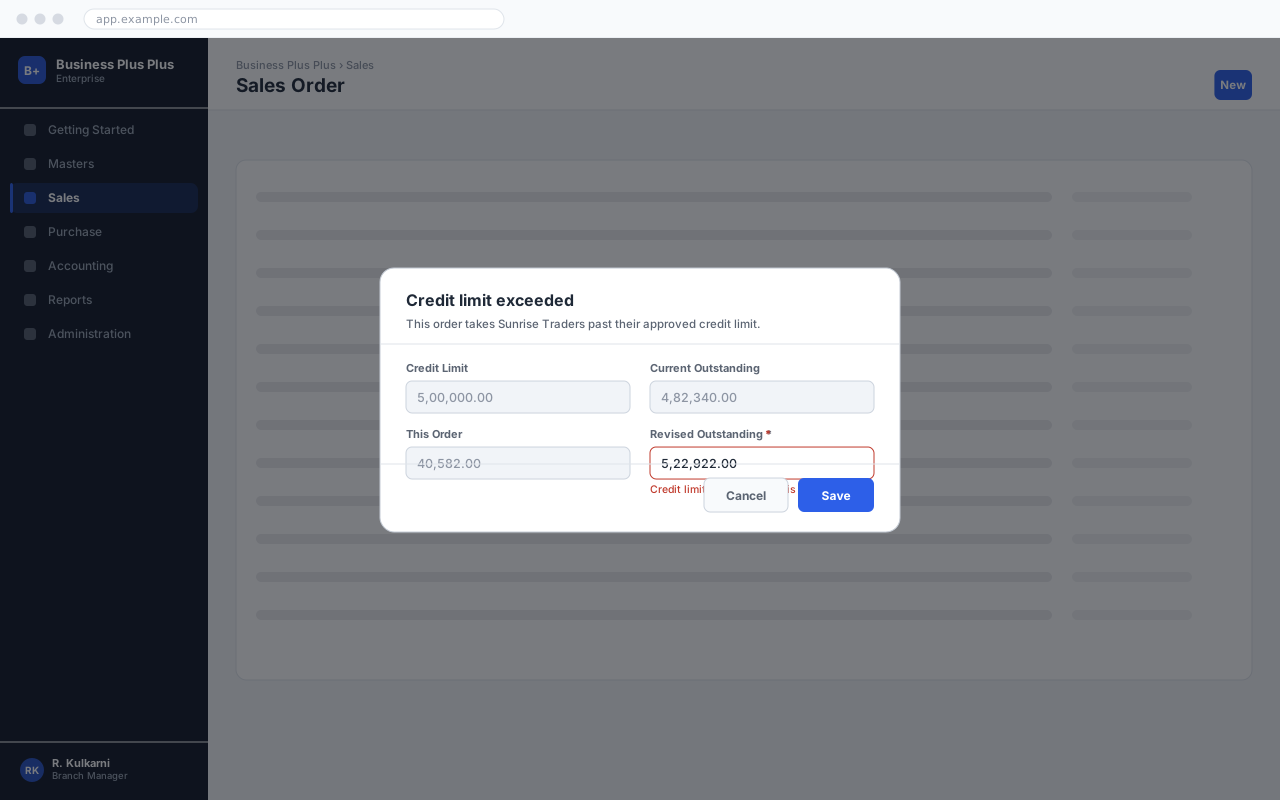
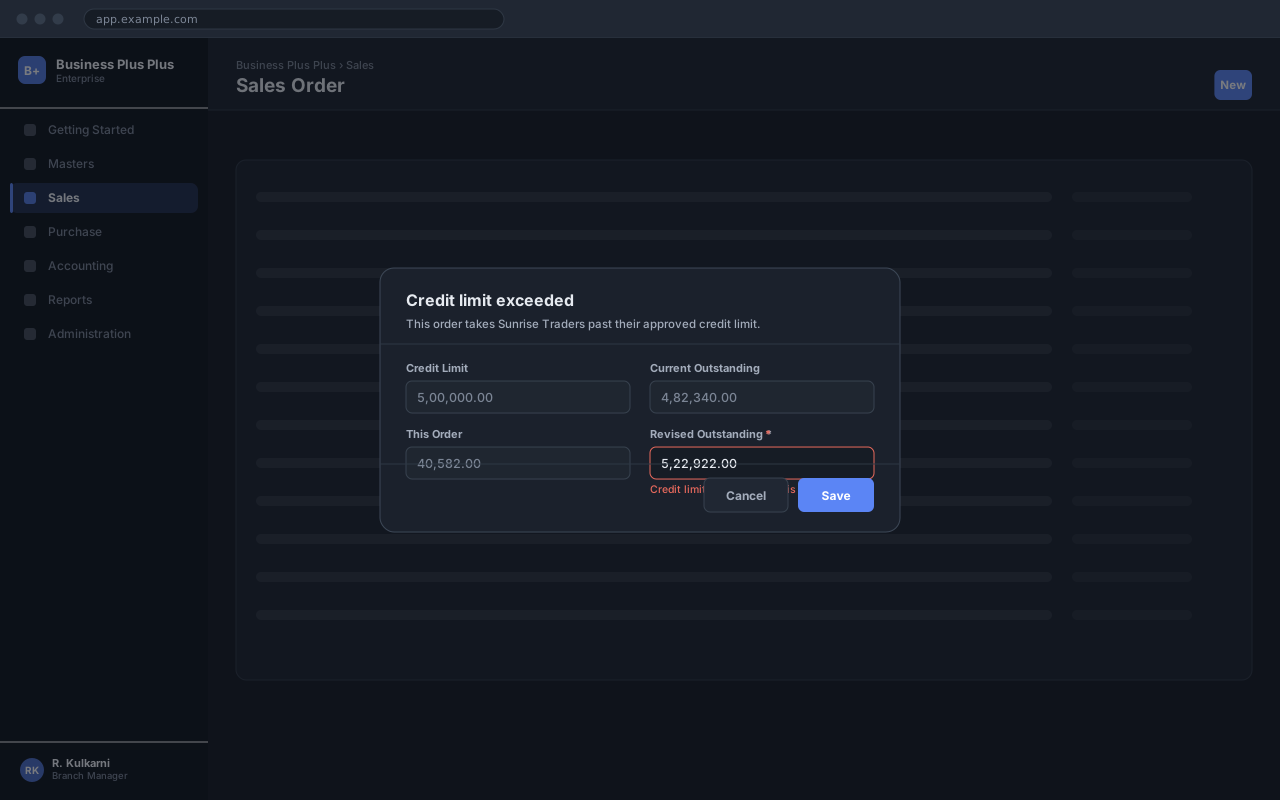
If the order takes the customer past their credit limit, you will see this:
Expected result
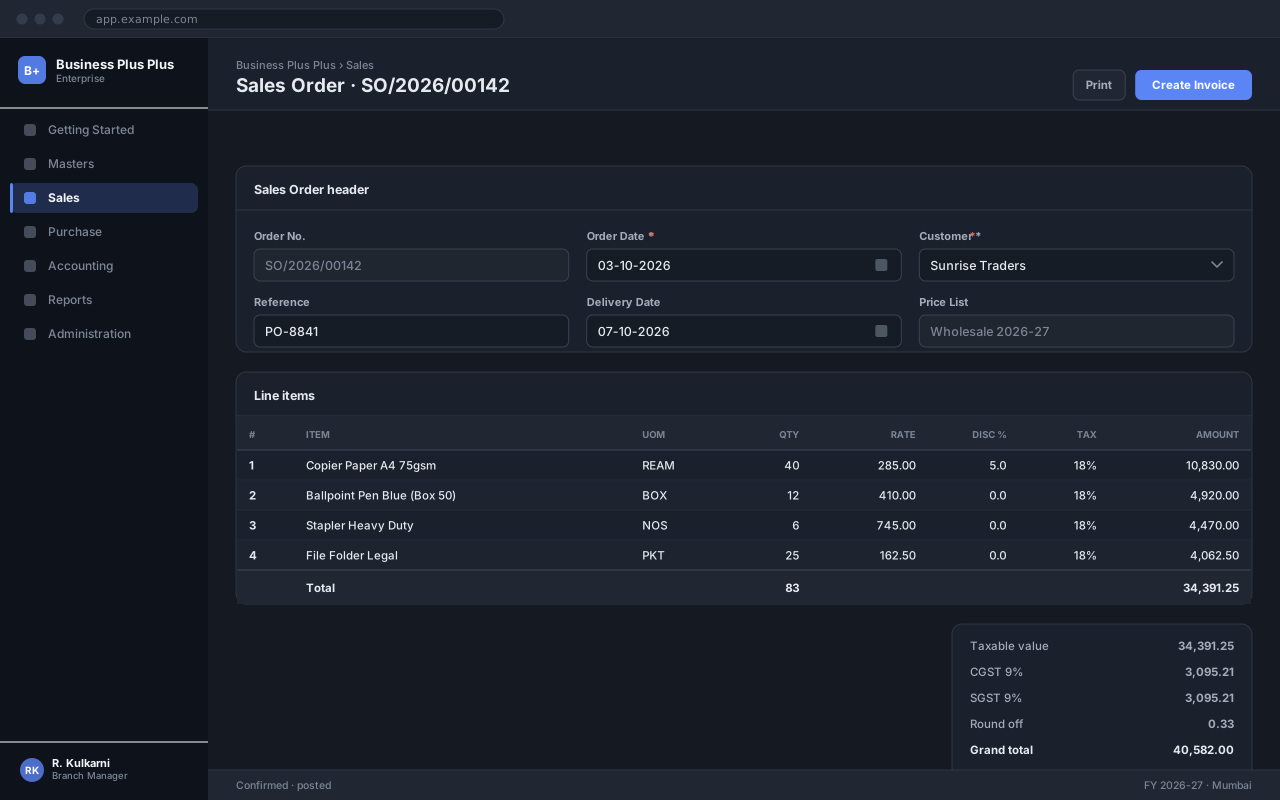
The order is saved with a number such as SO/2026/00142 and a status of Confirmed. It appears in the Sales Order list, the ordered quantity is reserved against stock, and the order shows on the dispatch worklist for its delivery date.

What to do next
Section titled “What to do next”Deliver the goods
Raise a delivery note against the order to dispatch the stock.
Raise the invoice
Invoice the delivered quantity and create the receivable.
Collect payment
Record the receipt and allocate it against the invoice.
Platform notes
Section titled “Platform notes”The full line-item grid, keyboard navigation and the totals panel are all available. This is the supported way to enter orders.
Order entry works, but the line-item grid scrolls horizontally below 1280px. Usable for one or two lines; awkward for twenty.
Field staff can raise an order with up to five lines and no discount override. Anything more complex has to be entered on a desktop. The app queues orders raised offline and submits them on reconnect.
Important notes
Section titled “Important notes”Common problems
Section titled “Common problems”Problems raising a sales order
The rate comes in as zero
No price list resolves for that product, customer and order date. Open Masters → Pricing → Price List and check the validity window and the scope. An expired price list is the usual cause, and it fails silently at month boundaries.
The customer is not in the lookup
The lookup shows active customers only. Open the Customer Master and check Status, and that the customer’s group is one your role may transact with.
Save is refused with a credit limit message
The customer’s Credit Check is set to Block and this order would take them past their limit. Either collect against the outstanding invoices first, or ask a manager to raise the limit on the Customer Master.
The quantity will not accept decimals
The unit of measure is configured as whole-number only. Switch to an alternate UOM that allows decimals, or change the order to a whole quantity.
The tax is zero on every line
Either the customer’s tax category is Exempt or Unregistered, or the products have no tax code. Check the Tax tab on the customer first, then the HSN code on the product.
The order will not save and no message appears
Scroll up — the first invalid field is outlined in red at the top of the form, and on a long order it can be above the visible area.
Practice
Section titled “Practice”Work through these before taking live orders
Creating a sales order end to end
Walks through the full procedure on this page, including the credit limit override.
Frequently asked questions
Section titled “Frequently asked questions”Sales Order FAQ
Can I edit a Sales Order after saving it?
While the order is in Draft, every field is editable. Once it is Confirmed, you can change the delivery date, the narration and the reference, but not the customer, the products or the rates. For those, cancel the order and raise a new one — or amend it, if your role has the Amend Order permission, which keeps the number and records a revision.
How do I part deliver an order?
Raise a delivery note against the order and enter the quantity actually being dispatched on each line. The order stays open with the balance showing as pending, and its status becomes Part Delivered. Repeat until the order is fully delivered or you short-close the balance.
Why can I not change the rate?
Rates come from the price list, and overriding them needs the Override Pricing permission — which most sales roles do not have. If a customer has genuinely negotiated a different price, the right fix is a customer-specific price list, so the next order gets it automatically. See Price List.
What happens to the stock reservation if I cancel?
It is released immediately and the stock becomes available to other orders. Nothing is posted to the ledger, because a Sales Order never posted anything in the first place.
Can I create an invoice directly from the order?
Yes — Create Invoice on a confirmed order copies the lines straight through. That skips the delivery note, so stock is reduced by the invoice instead. It is the right route for services and for goods collected from your counter; for anything dispatched, raise the delivery note.
How do I find orders a customer has not collected?
Run the Sales Order list with status Confirmed and a delivery date in the past. Those are orders that were committed to and never dispatched.