Delivery
A delivery note records goods physically leaving your premises. It reduces stock; it does not create a receivable.
Overview
Section titled “Overview”Deliveries are normally raised against a sales order, which carries the ordered quantities across and tracks what is still outstanding. Partial deliveries are expected: an order stays open until every line is fully delivered or the balance is short-closed.
Prerequisites
Section titled “Prerequisites”Before you begin
- The party exists and is active
- The items you need exist with a unit of measure
- The financial period you are posting into is open
Opening the screen
Section titled “Opening the screen”- Sales
- Transactions
- Delivery Note

Procedure
Section titled “Procedure”Open the Delivery Note screen
Use the navigation path above and click New.
Pull in the sales order
Select the customer, then click Fetch Orders and tick the order you are delivering against. Lines are copied with their ordered and already-delivered quantities shown.
Enter the delivered quantity
Set the quantity actually being dispatched on each line. Leave a line at zero to exclude it from this delivery.
Record the dispatch details
Enter the vehicle number, transporter and number of packages. These print on the delivery note, and are what the driver is asked for at a checkpoint.
Save and print
Click Save, then Print. Stock is reduced the moment the note is saved.
Expected result
Stock falls by the delivered quantity, the delivery note gets a number such as DN/2026/00417, and the source order shows the reduced pending quantity.
Field reference
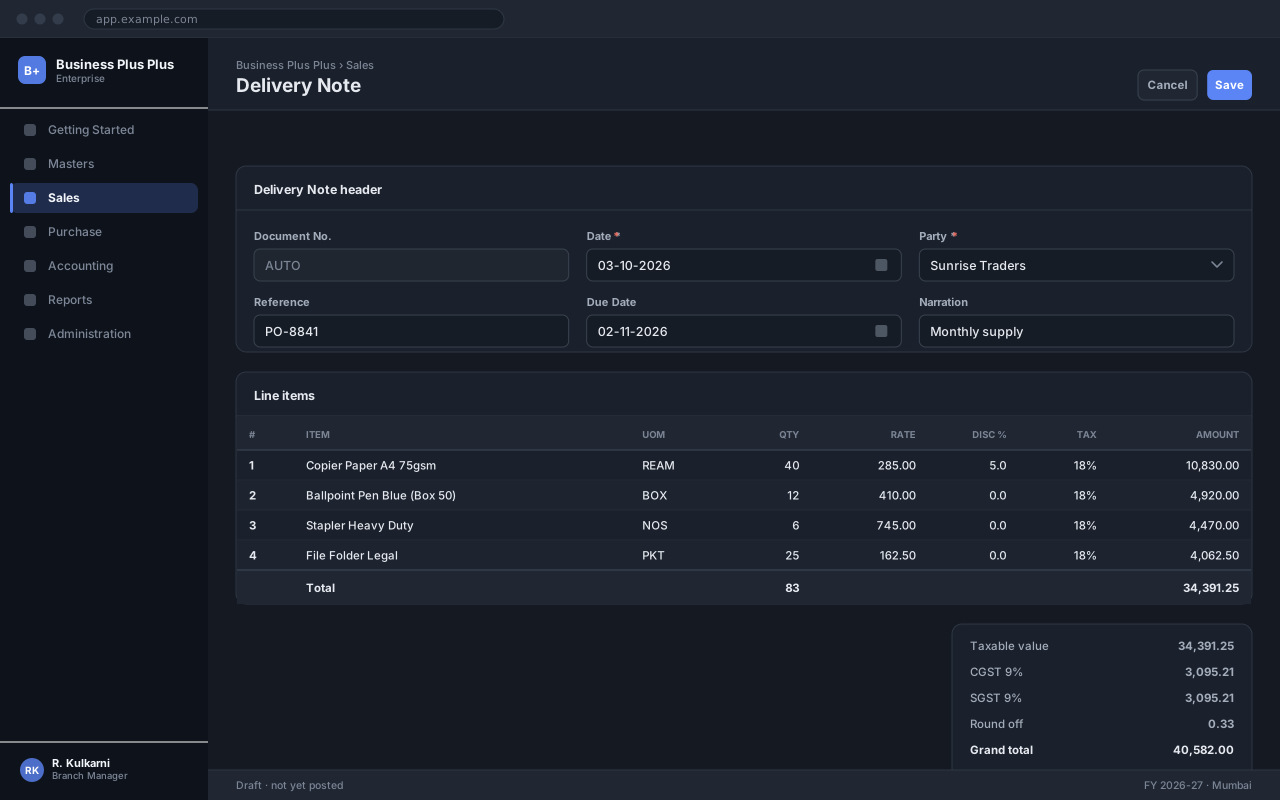
Section titled “Field reference”| Field | Type | Required | Default | Description | Notes |
|---|---|---|---|---|---|
| Document No. | Auto | Read-only | — | Number allocated from the Delivery Note series when the record is saved. | Gaps are not permitted; cancel rather than delete. |
| Date | Date | Yes | Today | Effective date of the transaction. | Must fall inside an open financial period. |
| Party | Dropdown | Yes | — | The account this transaction is raised against. | Only active parties are listed. |
| Reference | Text | No | — | The other party's document number, for reconciliation. | |
| Narration | Text area | No | — | Explanation carried through to the ledger and the printed document. |
Delivery Note fields
Important notes
Section titled “Important notes”Common problems
Section titled “Common problems”The Save button is disabled
A required field is empty or invalid. Fields in error are outlined in red with the reason underneath — scroll up, the first error is usually in the header.
You do not have permission to perform this action
Your role is missing the relevant permission for this screen. Ask an administrator to check it against Roles & Permissions.
The period is closed
The date falls in a financial period that has been closed. Either use a date in an open period, or ask an administrator to reopen it — which affects everyone, so it is rarely the right answer.
The rate comes in as zero
No price is configured for that combination of party and item on this date. Check the applicable price list, and whether its validity window covers the document date.
Frequently asked questions
Section titled “Frequently asked questions”Can I edit a delivery Note after saving?
While it is still in Draft, yes — every field is editable. After confirmation only non-financial fields such as Narration can be changed; anything else requires cancelling and re-raising the document.
Why is the document number not sequential?
Numbers are allocated when a document is saved, so a cancelled document leaves its number used. That is intentional: a gap-free series is what makes the audit trail defensible.
Can I change the date after confirming?
No. The date determines which period the entry posts into, so changing it would move an already-posted entry between periods. Cancel and re-raise with the correct date.