Login
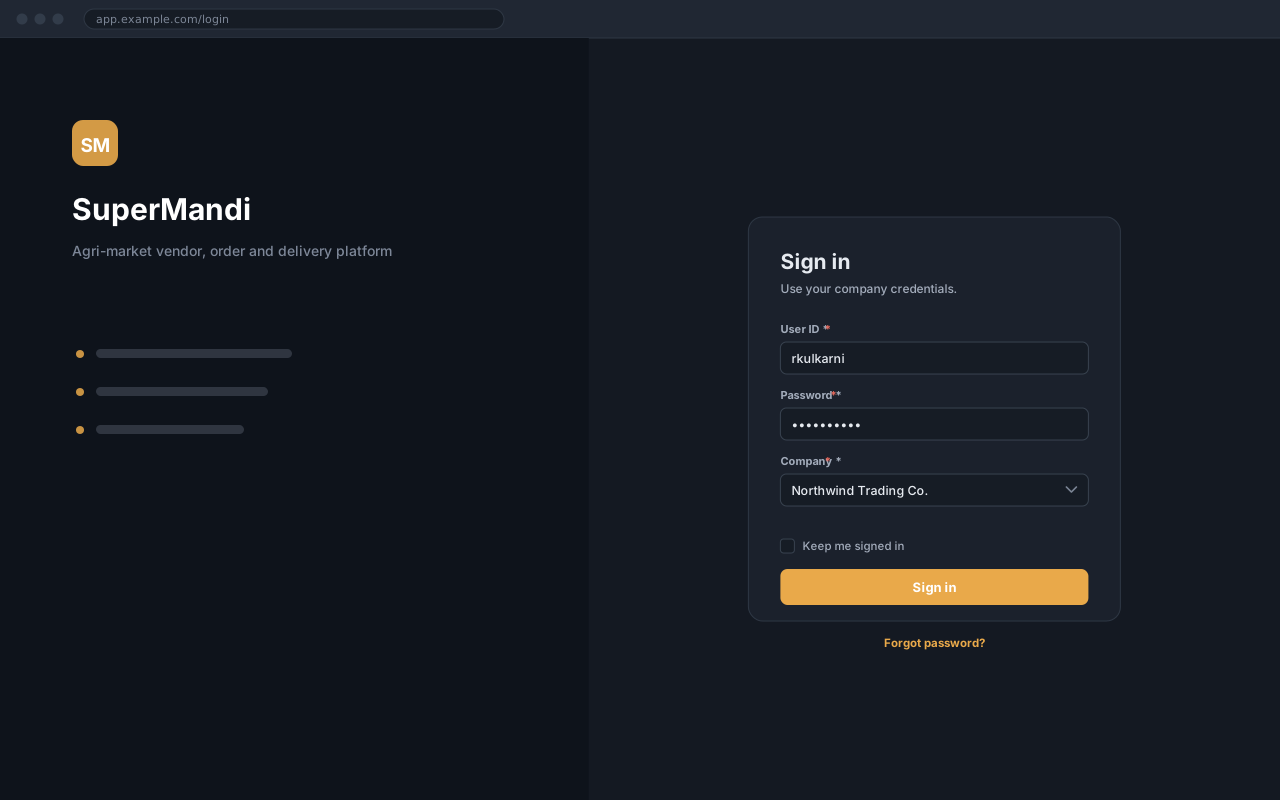
Signing in to SuperMandi establishes who you are, which branch you are working in and which financial period your entries post into. Getting those three right at sign-in saves a great deal of correction later.
Overview
Section titled “Overview”SuperMandi is a browser-based application — there is nothing to install. Your administrator gives you a URL, a user ID and a first-time password.

Procedure
Section titled “Procedure”Open the application URL
Enter the address your administrator gave you. Bookmark it — signing in through a search engine result is how people end up on the wrong environment.
Enter your credentials
Type your user ID and password. Both are case-sensitive.
Select the company and period
Choose the company you are working in. The financial year defaults to the current one.
Sign in
Click Sign in. You land on the dashboard for your role.
Expected result
The dashboard opens, and the status bar at the foot of the window shows your name, the selected company and the financial year.
Field reference
Section titled “Field reference”| Field | Type | Required | Default | Description | Notes |
|---|---|---|---|---|---|
| User ID | Text | Yes | — | Issued by your administrator. Case-sensitive. | Not your email address unless your administrator configured it that way. |
| Password | Password | Yes | — | Minimum 8 characters, with at least one number. | Five failed attempts lock the account for 15 minutes. |
| Company | Dropdown | Yes | — | The company whose data you want to work in. | Only companies your role grants access to are listed. |
| Financial Year | Dropdown | No | Current year | The period your entries post into. | |
| Keep me signed in | Checkbox | No | Off | Extends the session to 30 days on this device. | Leave off on shared machines. |
Sign-in fields
Important notes
Section titled “Important notes”Common problems
Section titled “Common problems”Invalid user ID or password
Check Caps Lock, then confirm the user ID with your administrator. The message is deliberately vague about which of the two was wrong, so it cannot be used to discover valid user IDs.
Account locked
Five failed attempts lock the account for 15 minutes. Wait it out, or ask an administrator to unlock it immediately.
No companies listed
Your account exists but has not been granted access to any company. An administrator needs to assign one.
Signed out unexpectedly
Sessions end after 60 minutes of inactivity, and signing in elsewhere ends the earlier session. Unsaved work in an open document is lost, so save long entries as you go.
Frequently asked questions
Section titled “Frequently asked questions”Can I be signed in on two devices at once?
No. Signing in on a second device ends the first session, which is deliberate — it keeps one user ID from being shared.
How do I change the company after signing in?
Use the company name in the status bar, or sign out and back in. Switching closes any open document first.
Does the application work on a phone?
The screens are responsive and reading works well on a phone, but data entry is designed for a screen at least 1280px wide.